
We support a flexible chart of accounts in which you can configure multiple segments for both budgetary and transactional reporting purposes.
The chart of accounts is based around the following core concepts
- Segments – segments represent a unique column or striping of your chart of accounts. Typically, segments will include items such as Account Type, Account Category and Account Code although you are free to add as many additional segments as you wish. For example, it is common for client implementations to extend the accounting structure for both internal and external related coding structures such as Cost Centres, Bank Accounts or JCodes.
- Coding Structure – within a segment you can specify a coding structure. Similar to option sets, codes represent several unique values which form a segment.
The Segments you configure in the system together with their coding structures form a unique set of values; these are referred to as code combinations. It is these unique sets of codes that financial transactions are recorded against.
You cannot use special characters in any Chart of Accounts Segments. For example - . / *
Configure Chart of Accounts Segments
Within the Finance section of the Global Features page, you will find several Finance related features including the Chart of Account Feature.

This lists the Chart of Account Segments.

The base installation contains 3 initial segments Account Type, Account Category and Account Code and for the majority of configurations this maybe sufficient.
You can create additional segment by clicking the + button on the SEGMENTs header

This opens the following screen

When defining a new Segment, you can define
-
Whether the segment is independent or part of a hierarchy
For example, the out of the box Clio Operate accounting structure is based on a 3-level hierarchy of Type, Category and Code
-
Whether the segment values are locked once the transaction posted
Typically where your transactions are to be posted to back-end systems you don’t want the “coding” to be changed following this posting activity however in some circumstances you may wish coding to be changed. Once such example is the use of 3rd party coding such as JCodes where you may wish to reallocate transactions to meet 3rd party reporting needs.
Maintain the Segment Codes
To maintain the codes or values for a given segment click on the right chevron for the segment

This show you a list of codes, together with their hierarchy if the segment has been specified to be hierarchical.
Within this screen you can
- Add new codes by pressing the “Add Code” button – NOTE: the Code should be unique for a given hierarchy.
- Disable codes so they are not selectable when transactions are created
- Remove codes that have not been used in the system. NOTE: Once a code has been used you can no longer remove it but should instead disable it.
-
Add “Striping” rules to control the display of codes in specific circumstances such as varying their display by
-
Case Type
For example, your real estate account structure will not be visible to commercial contracts.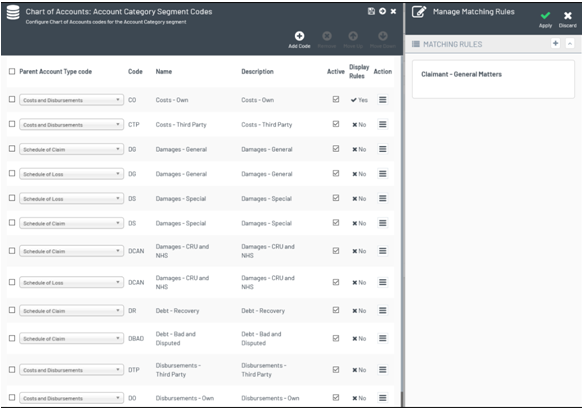
Figure 3 Adding rules to your chart of account values -
Client
If you have implemented specific segments to support client reporting. For example, cost centres you can restrict the codes by client also.
-
Case Type
Configure Account Codes for Different Transaction Types
When your users are recording payments, invoices, or other financial transactions you typically want them to use a specific set of codes based on your accounting structures. Simply put your accounting structure will have many codes and you want to narrow down their choices, so they get the right one. For example, invoice payments should typically be recorded against a bank account code.
Within the Chart of Accounts Global feature, you will see a sub feature called Chart of Accounts Work Type Configuration

When configuring the Chart of Accounts for a specific transaction work type such as Payments for example, you are presented with the following screen.

This screen enables you to configure
-
Available segments
For example if you have added additional segments for external reporting needs such as JCodes you may wish to disable this segment for specific transaction types. -
The Valid Account codes for this work type
By enabling the option Restrict Code Combinations for this work type you will be presented with an additional section
That enables you to specify the codes that can be used for this transaction type. For ease of use this screen supports wildcards ****.
This configuration is reflected when your end users create financial transactions. The system dynamically adjust the segments and the codes based on your configuration.
For example, if you specify that only a single code can be used the system will hide the account picker

Or if you have restricted the availability of codes to single category then only the code picker displays.
